Next: E-mail Up: User manual Previous: Introduction Contents
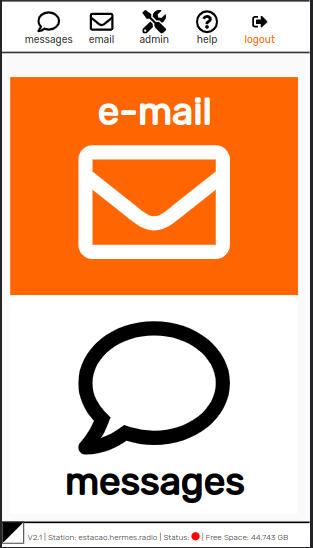
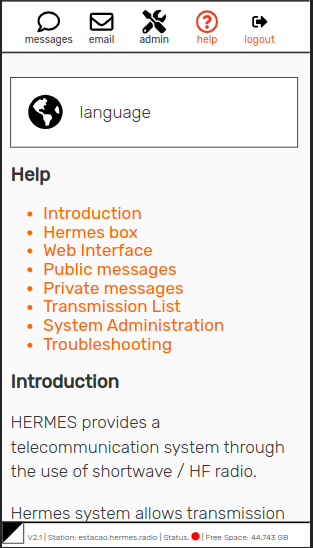
HERMES provides a web interface which can be accessed through a local WiFi network. When accessing the HERMES WiFi network, the following information applies:
Be aware that on some mobile phones a browser will automatically open with the the main HERMES web page, while in others, to access the HERMES web interface, you must open the browser and access http://ac1.hermes.radio or http://10.0.0.1.
O navegador chrome / chromium é o navegador padrão para utilização da interface HERMES, para garantir uma melhor experiência faça preferência pelos navegadores informados.
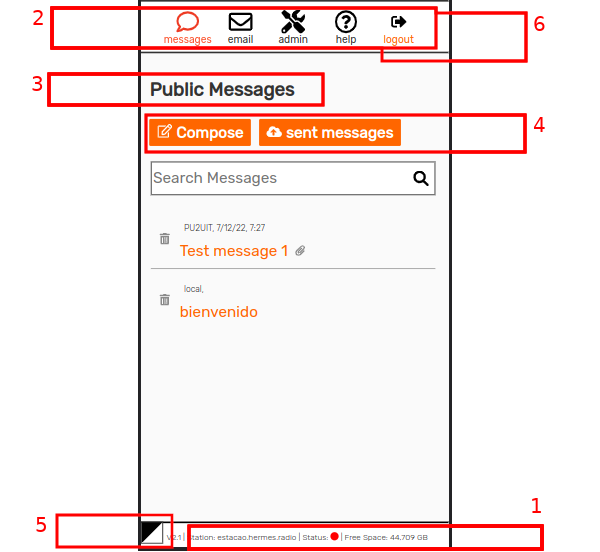
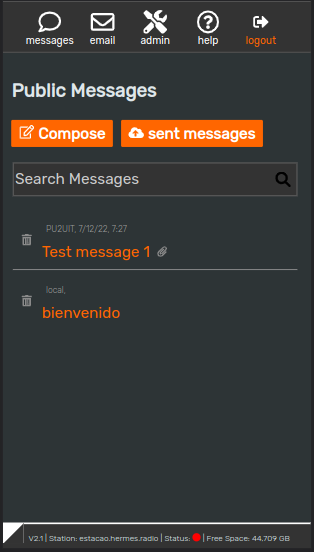
On the public messages page 1.4 you will find the following links:
The web interface allows admin users to manage e-mail accounts, to perform radio configurations (like setting frequency and SSB mode) and exchange direct messages between stations (BBS). The interface also contains its own administrative section, for defining and managing users and their privileges.
It is important to note that same user name created for the administrative interface will be used for the e-mail address assigned to that user. For example, user "amelia" in the local interface will have the email "amelia@ac2.hermes.radio". Note that the email address is composed of the user name @ the name of the station, which corresponds to its internet domain name, in this example, "ac2.hermes.radio". Each station domain name is written in the header on the Hermes web interface. If the domain begins with "ga" then it is a Gateway station.
To access admin features, you need an admin password. While anyone can create a user account, only a system admin can create new administrator user and give admin power to other users. To login, click on the login icon on the top right of the web interface.
The default administrator login username is: "root" and the password is: "caduceu".
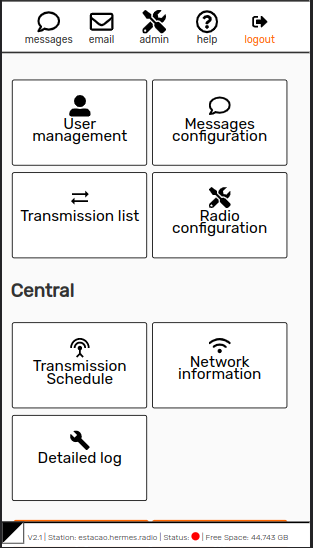
Inside the administration section, an admin user will find the following options: user management, messages administration, network information, stations, detailed log and radio configuration.
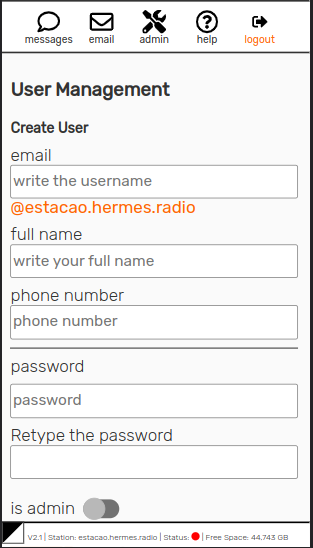
Allows the creation of new users, updating data of registered users and to delete users of the system. Every username corresponds to an email account with the same name as in the example above (e.g. amelia@ac2.hermes.radio).
Administrators can also give admin powers to regular users, by clicking on the "is admin" checkbox at the bottom of the Create User page.
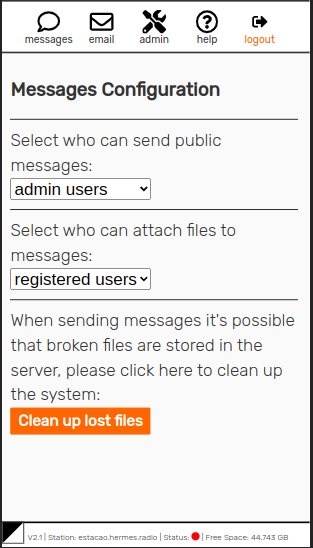
From this page, an admin can determine who will be able to send public messages between stations and who can attach files to this messages: everyone; only registered users or only administrators. It is worth thinking this through with the users as attachments can slow the system down considerably.
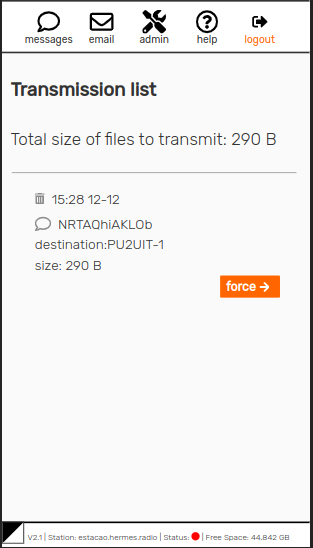
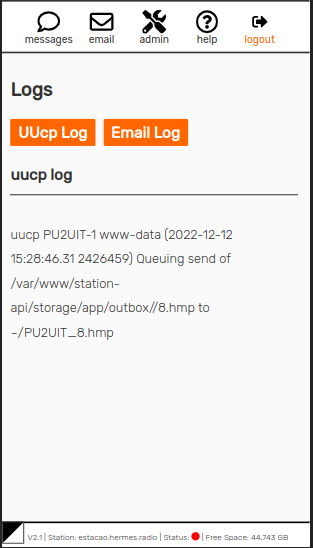
All data exchange in the HERMES system is done through UUCP. Being an asynchronous protocol, all the data is first queued before being transmitted. The elements of the UUCP queue are called "jobs", and each job in the HERMES system can be an e-mail, a public message, or special remote command execution message (for example, to inform of a new e-mail user creation). A system administrator can cancel a job before it is sent. Administrators can also erase the public messages for any reason, including the case when the equipment storage space is reaching its limit. The storage space available is shown in the web interface footer.
The queues of all Host stations are transmitted periodically when the Gateway station connects to each remote station based on whatever schedule has been configured. In an emergency, a system administrator can force message transmission and bypass the queue by clicking on the "force" link. This could interrupt receiving messages from other stations for a while and should be avoided unless absolutely necessary.
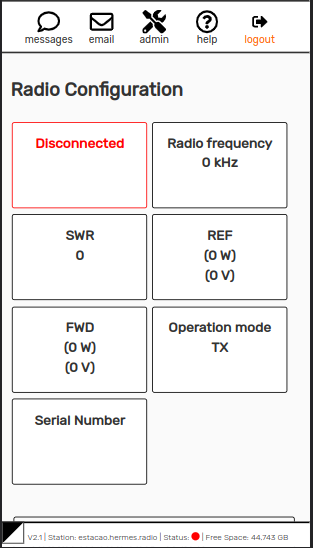
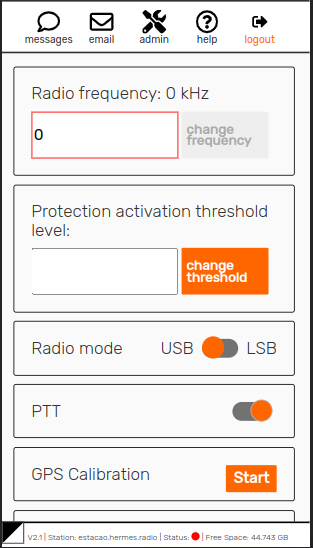
Provides a direct interface to change various radio settings like frequency, transmission mode, restore factory configuration and it also allows one to view sensor readings about the HF antenna of the system.
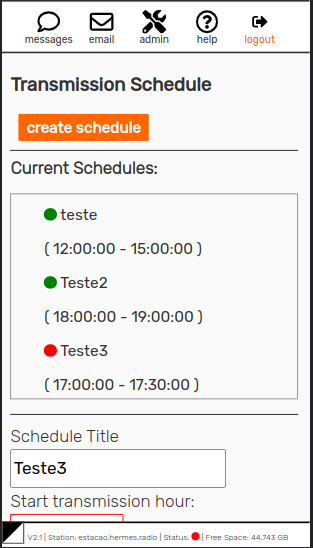
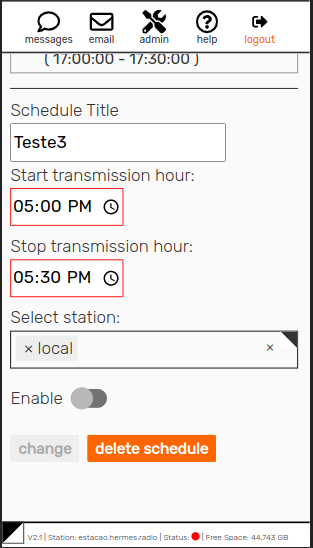
The central station is a special station that keeps connected to the internet. If you are in the central station, this option will be shown in the menu. From there is possible to create schedules for transmission to other stations, that are the time slots when the transmission will happen between all the stations connected to the network. It's possible also to enable or disable schedules or change their times from this menu.
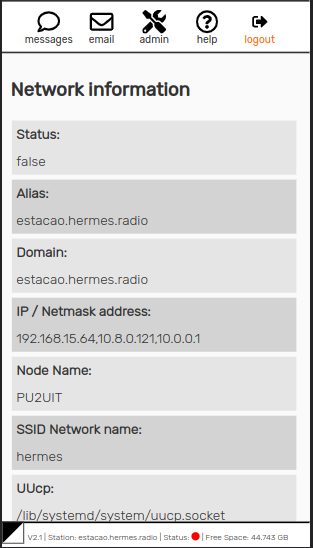
Displays some information about the system, such as network addresses, callsign, servername etc
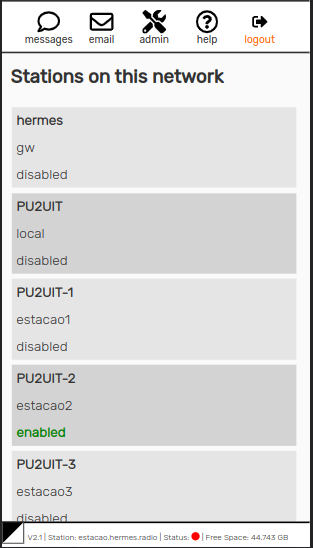
Provides a list of the available stations on the system.
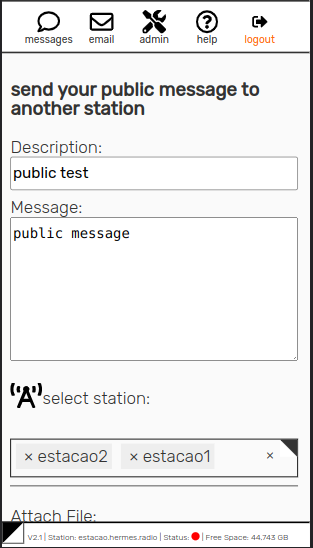
Direct messages can be sent between stations with support for cryptography and multimedia compression. Sent and received messages can be found in the Messages tab of the web interface. One Admin of the system can select who will be able to send public messages to other or tho it's own station.
By clicking on the compose ( )icon, it's possible to write a new message and to attach files such as images or audio files. The icon will only show up if it's allowed for the user to compose messages on the station. An admin can determine who can send public messages between stations and who can attach files to public messages by setting permissions in the admin tab.
Public messages can also be sent to your own station, which is an easy way to publicize news inside your own community.
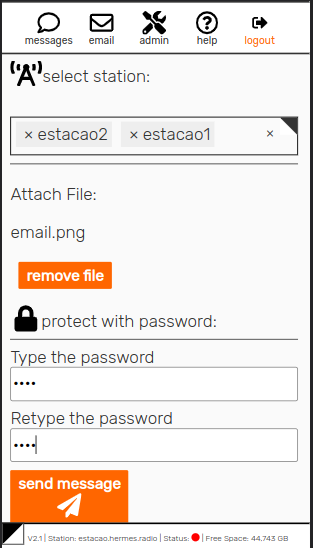
Public messages can also be password protected, which means that only recipients that know the password will be able to read their content, while the message description will still be readable by everyone. Have in mind that once a password for the message (has to be at least 4 characters) is defined, there is no way to recover it, nor to change it.
On the message administration link in the admin section, a system administrator can change who can attach files to messages between stations: everyone with access to the network, only registered users, or only administrators.
Because the data throughput over HF is relatively low, file attachments are limited to 20KB. The system will accept inputs for image and sound up to 30 MB and for other files up to 2 MB, and will try to compress them to fit the maximum size of 20KB using state-of-the-art compression techniques. Obviously, this can have an effect on both image and sound file quality. For other file formats, a simple compressor will be applied, and messages with attachment size greater than 20 KB will be cancelled.
The HERMES interface is also available in Portuguese and Spanish, and these versions can be accessed on the Language tab of the main menu.