Next: WiFi Setup Up: sBitx installation guide Previous: HERMES USB installer preparation Contents
The HERMES installation procedure will set up the sBitx radio with HERMES system, and perform the station-specific setup.
The installation is done in two steps. The first one with the pendrive inserted in the radio, and the second without the pendrive.
After preparing the USB pendrive and plugging it to the radio, turn on the radio.
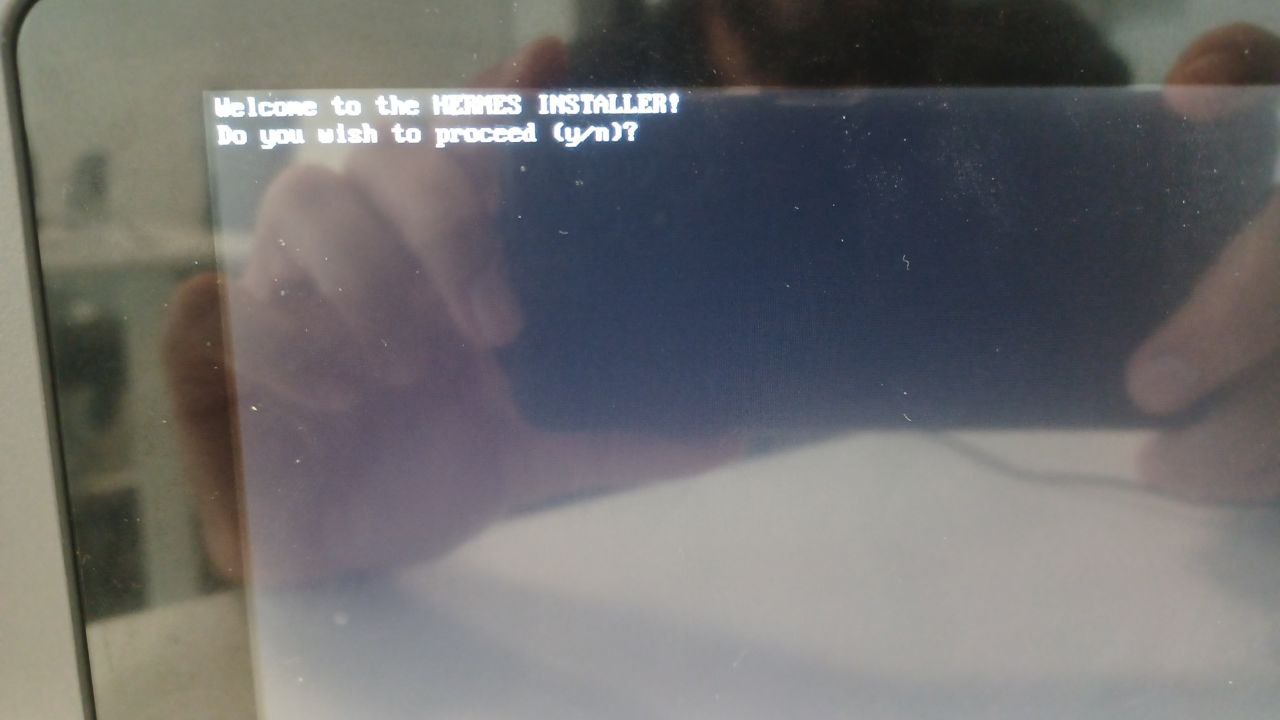
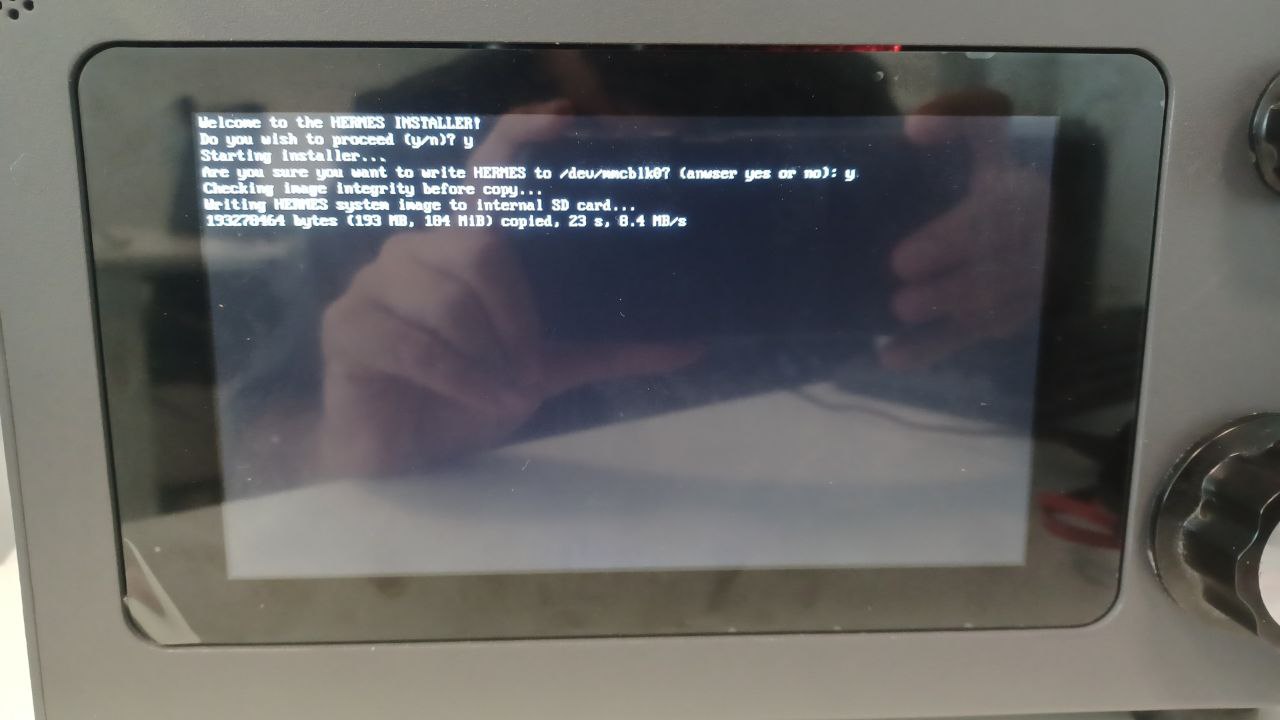
When asked if you want to proceed with the installation, answer “y” and press ENTER, as shown in Figure 2.16.
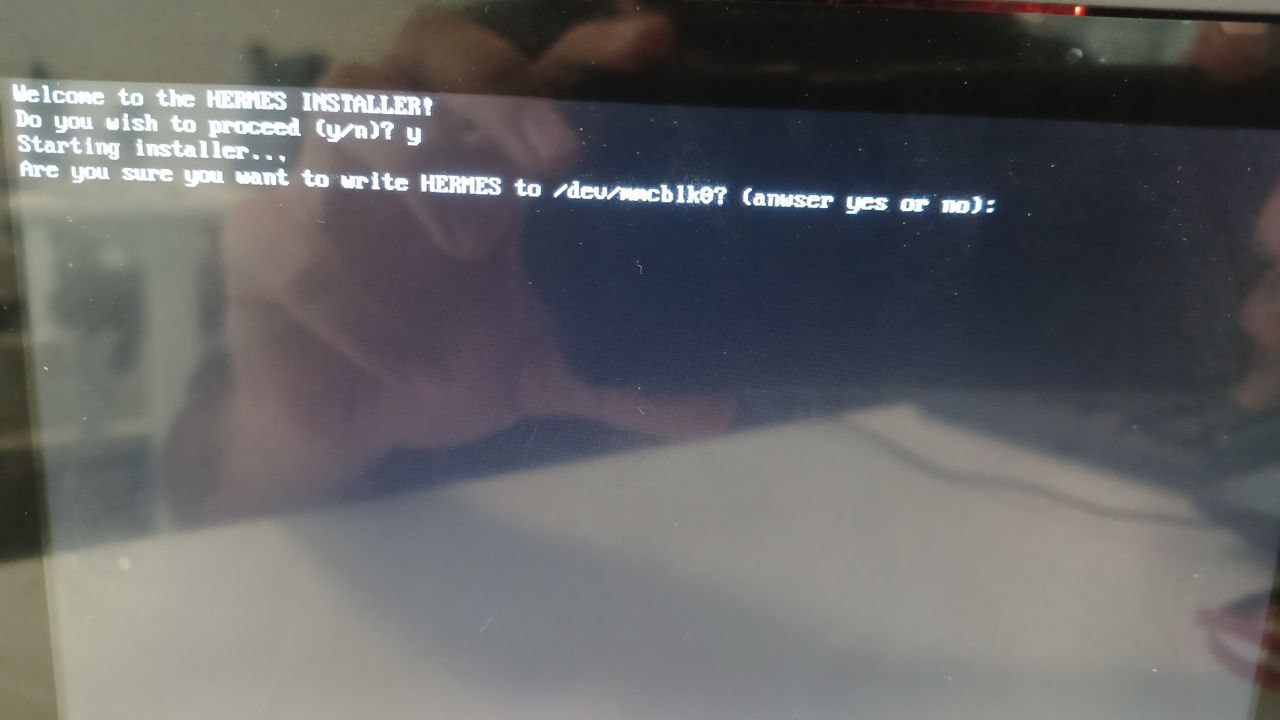
When asked if you want to write HERMES (copy the system), anwser “y” and press ENTER, as shown in Figure 2.17.
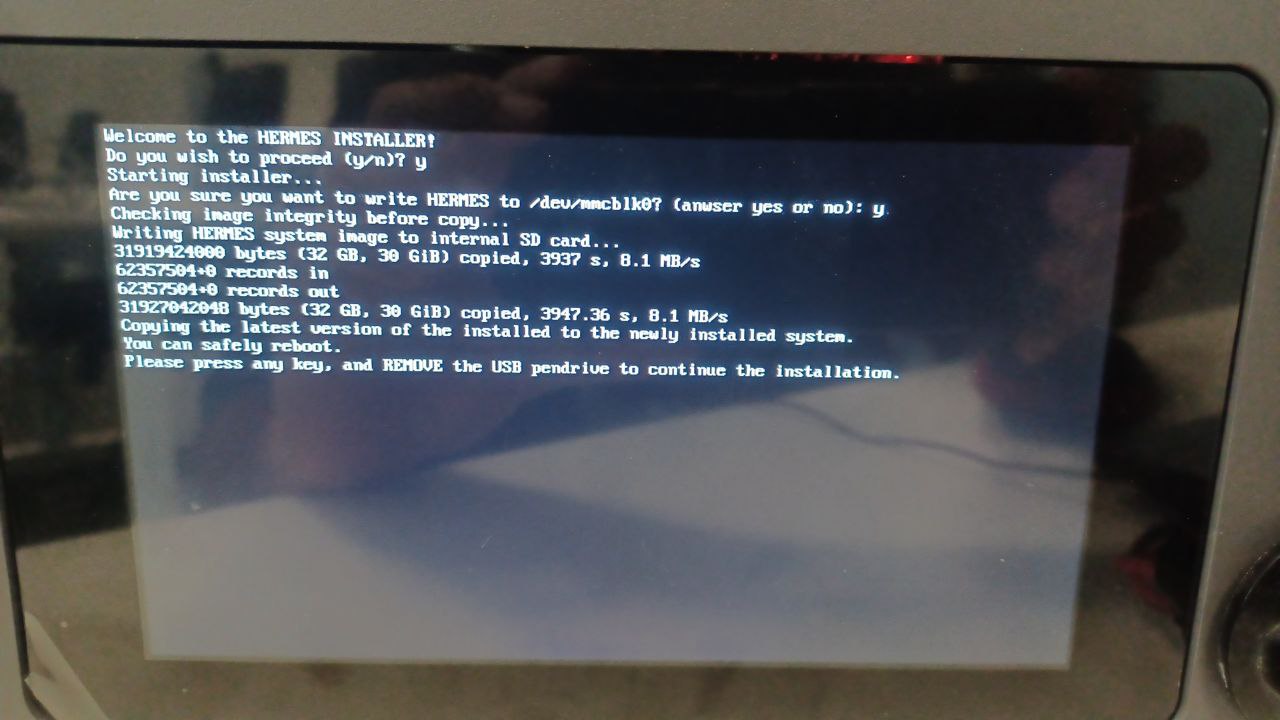
Then the installer will copy the HERMES system (Figure 2.18) to the internal radio SD card, which will take some time, most likely more than one hour.
After the copying is done (shown in Figure 2.19), reboot the radio (just press any key) and REMOVE the pendrive from the radio for the second step of the installation. Also make sure the network cable (Internet) is connected to the radio.
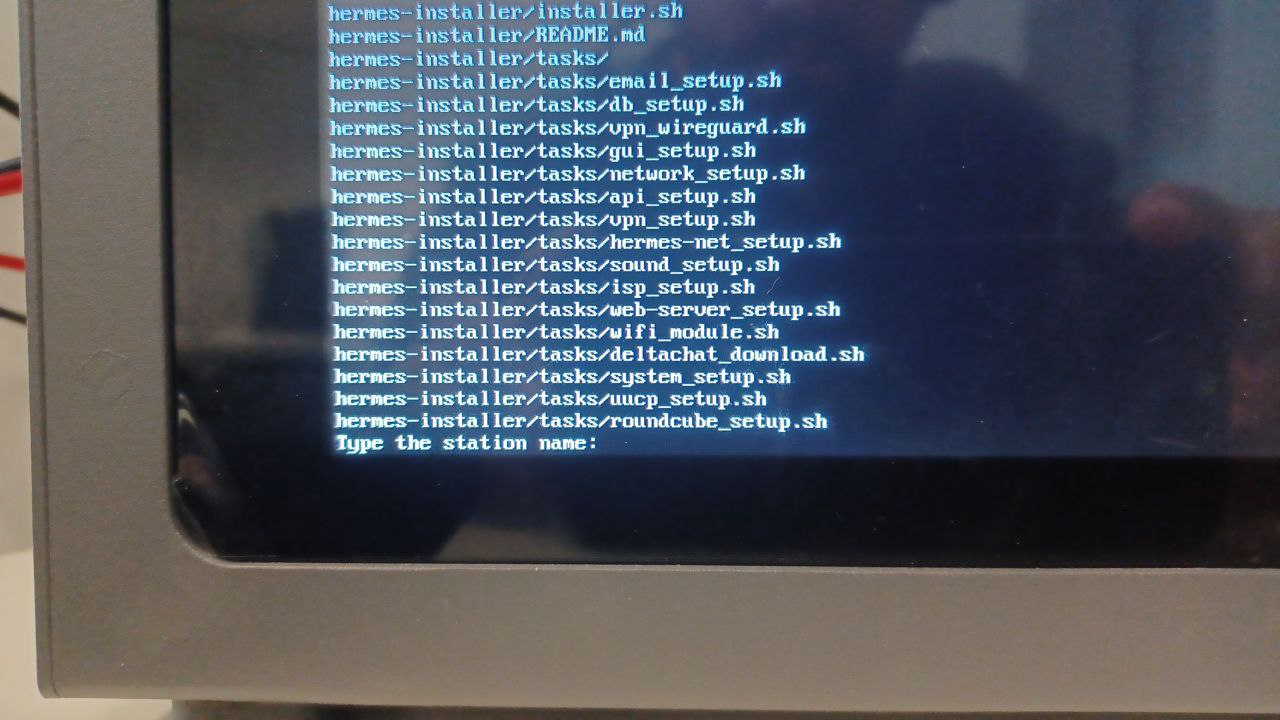
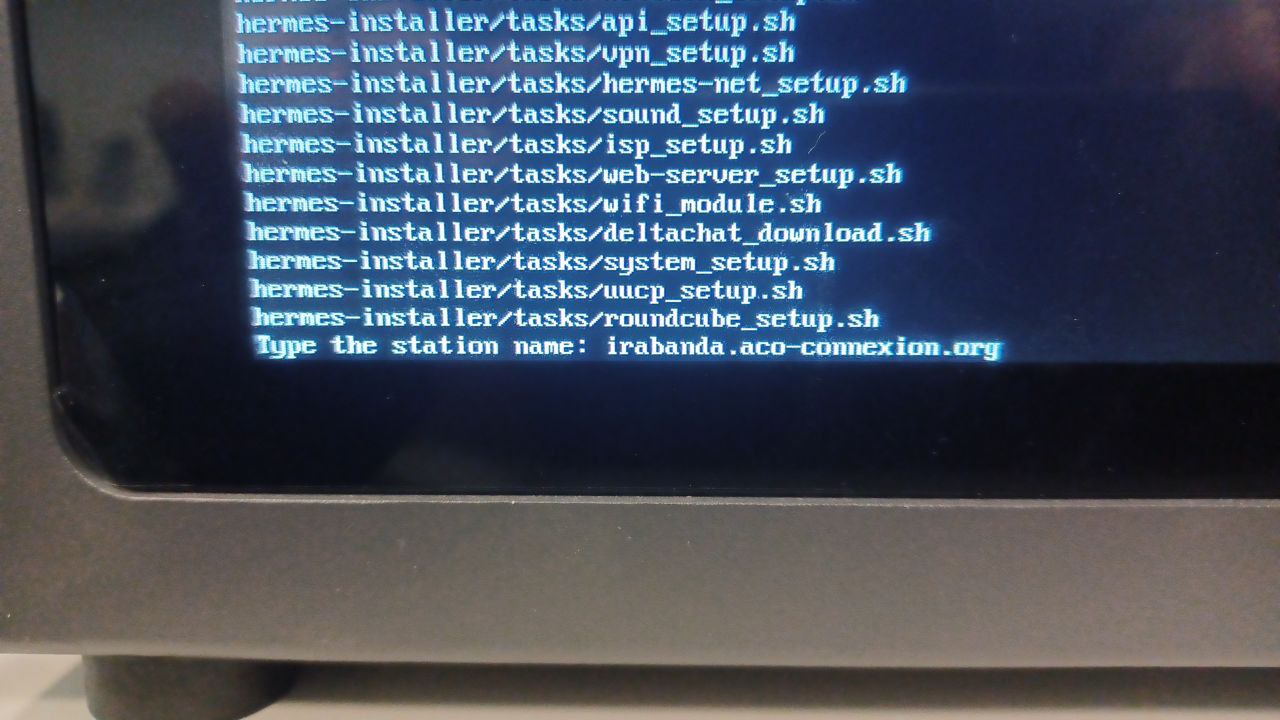
After the radio restarts, you will be asked about the station name to use, as shown in Figure 2.20 and 2.21. Choose one of station names below, by typing the full station name in the installed prompt.
The station “bangassouhub.aco-connexion.org” has the gateway station setup. The gateway station should be deployed in a place with Internet connection.
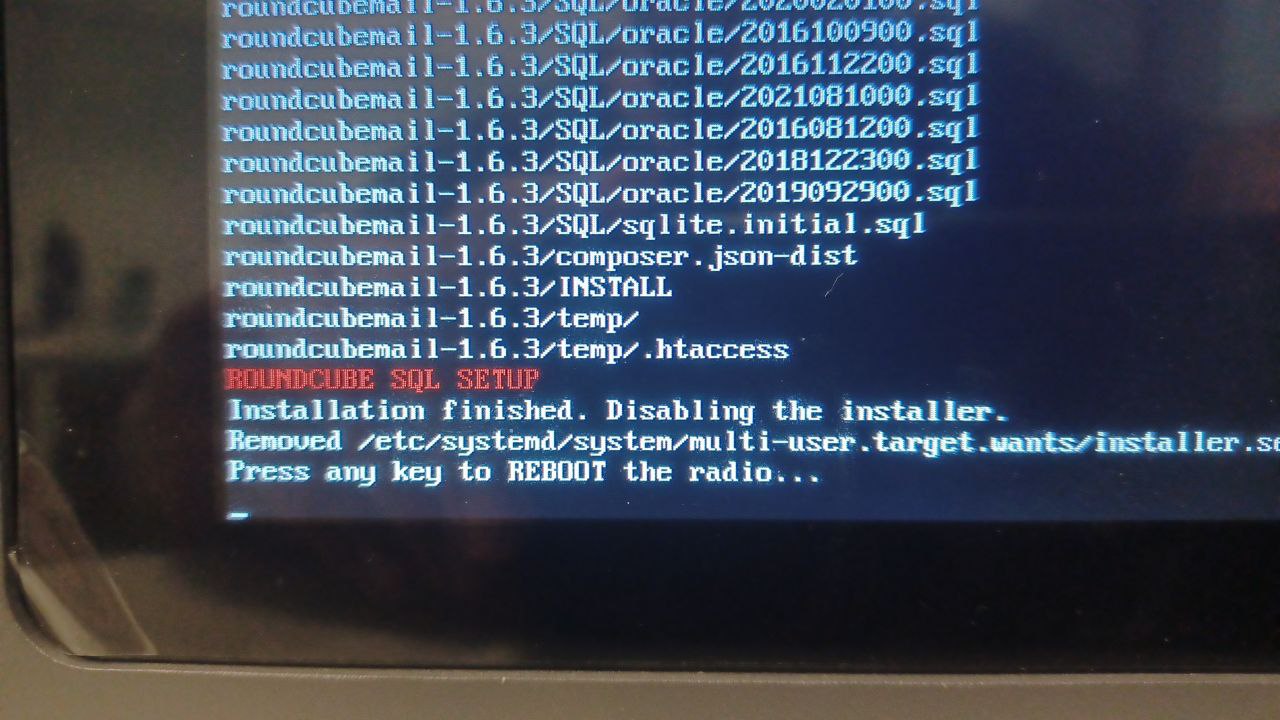
After the setup is finished, you should see the following message “Press any key to REBOOT the radio...”, as shown in Figure 2.22. Press any key. The installation process is finished.
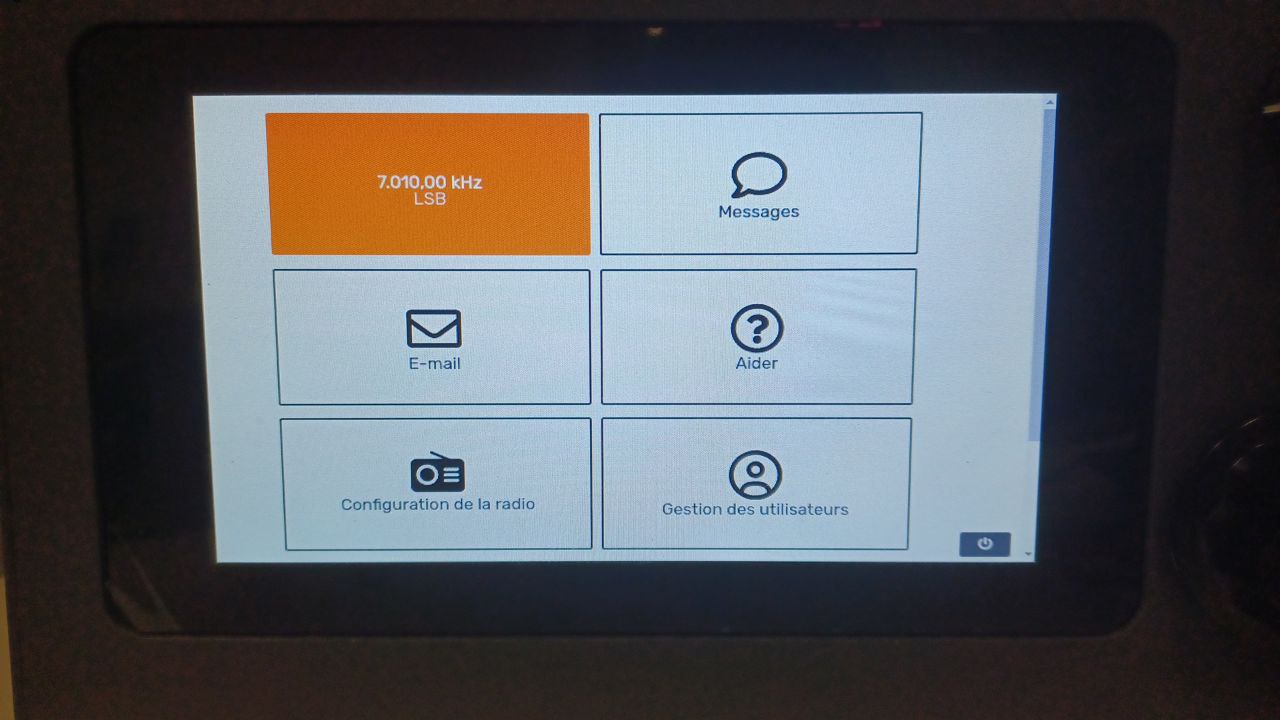
The radio will restart, and the HERMES interface will show up, as shown in Figure 2.23.
 .
.
 .
.